TIMELINE
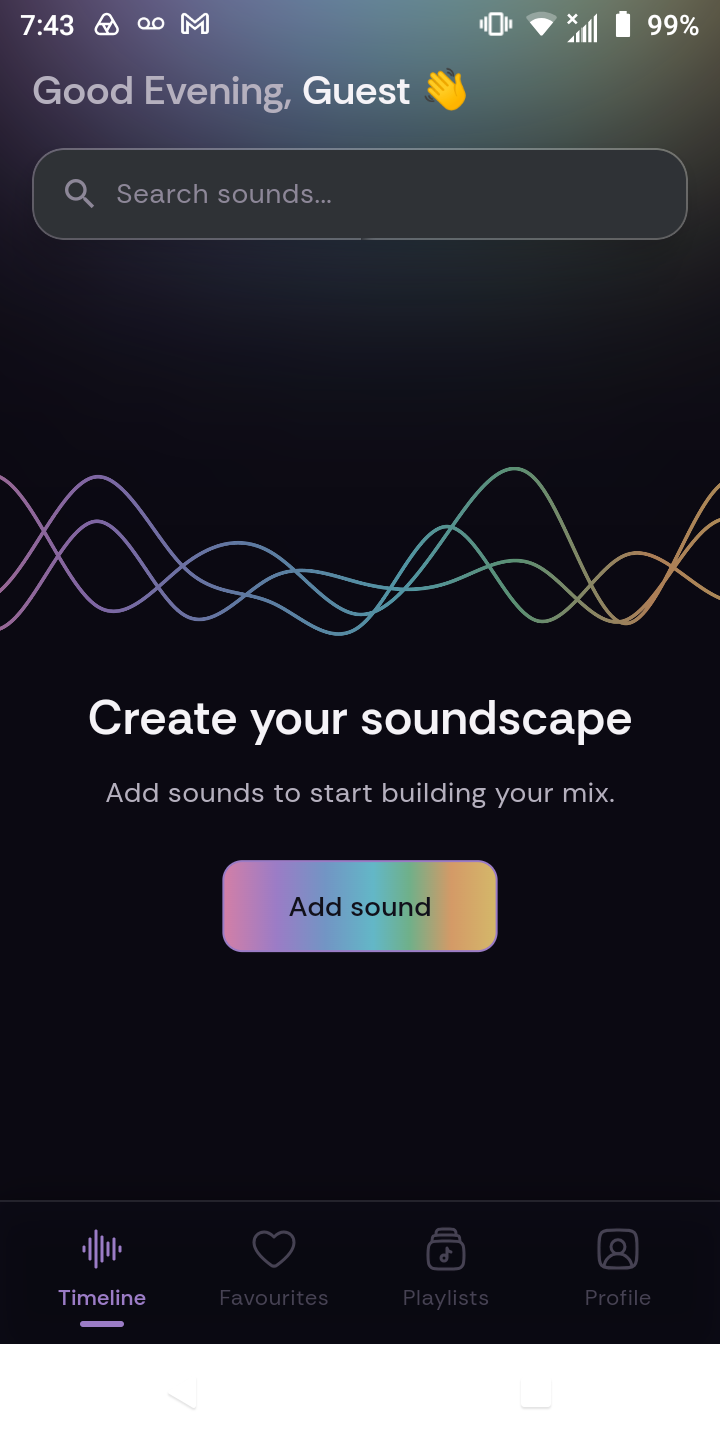
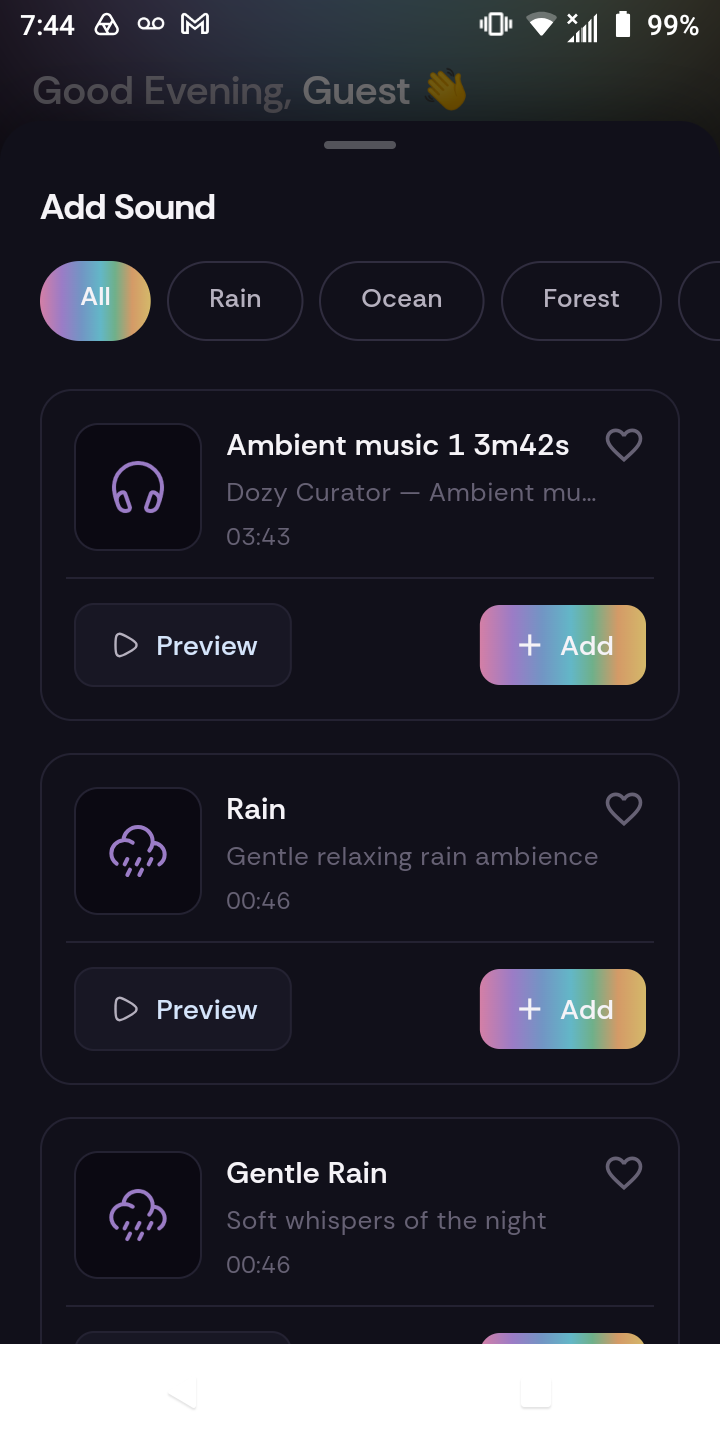
Tap on add sound to begin using the timeline.
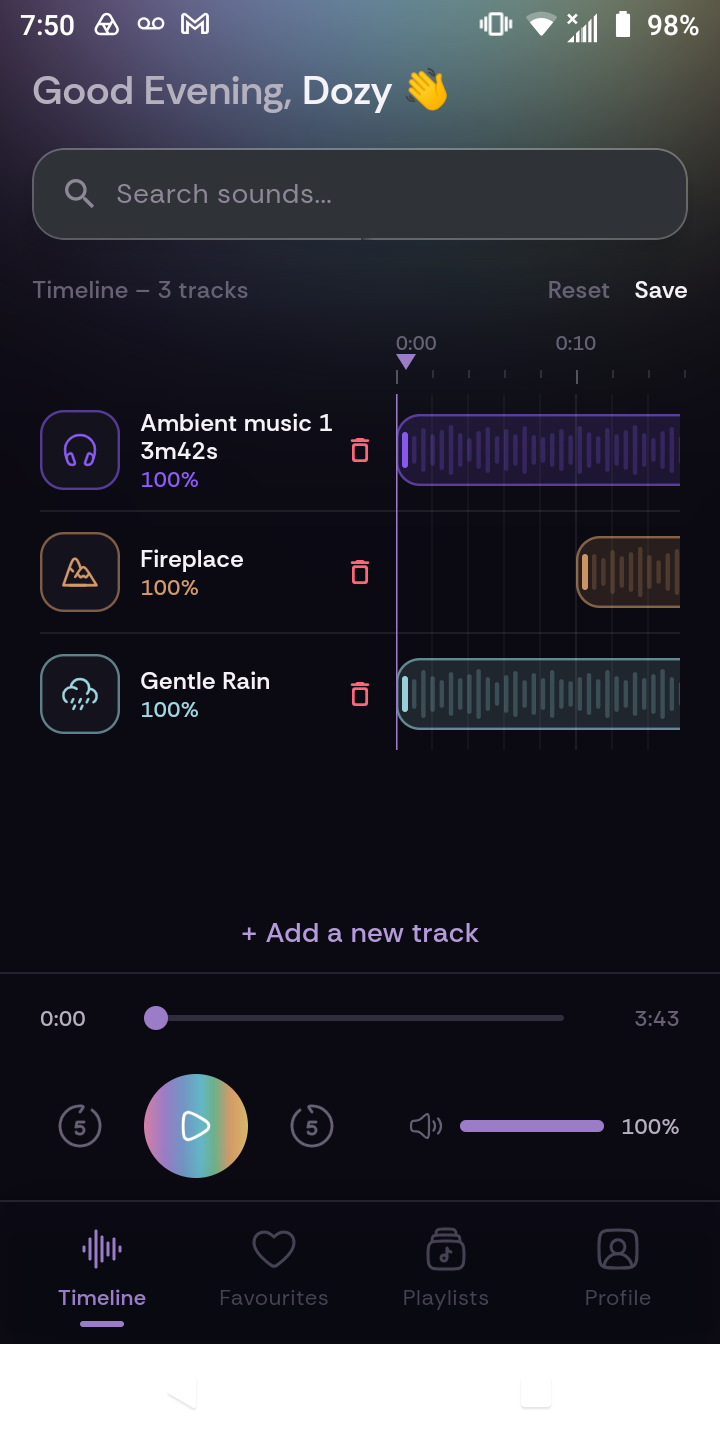
Tap +add a new track to add the sounds to the timeline.
Change the start time to when you want the sound to begin.
Change the duration of the sound if you'd like (note: Foreground elements have a fixed longest duration, but can be made shorter. Ambience layers loop.)
(If you would like to play sounds sequentially, add the start time of your preferred sound at the end of your previous sound. All sounds have their own track.)
FAVORITES
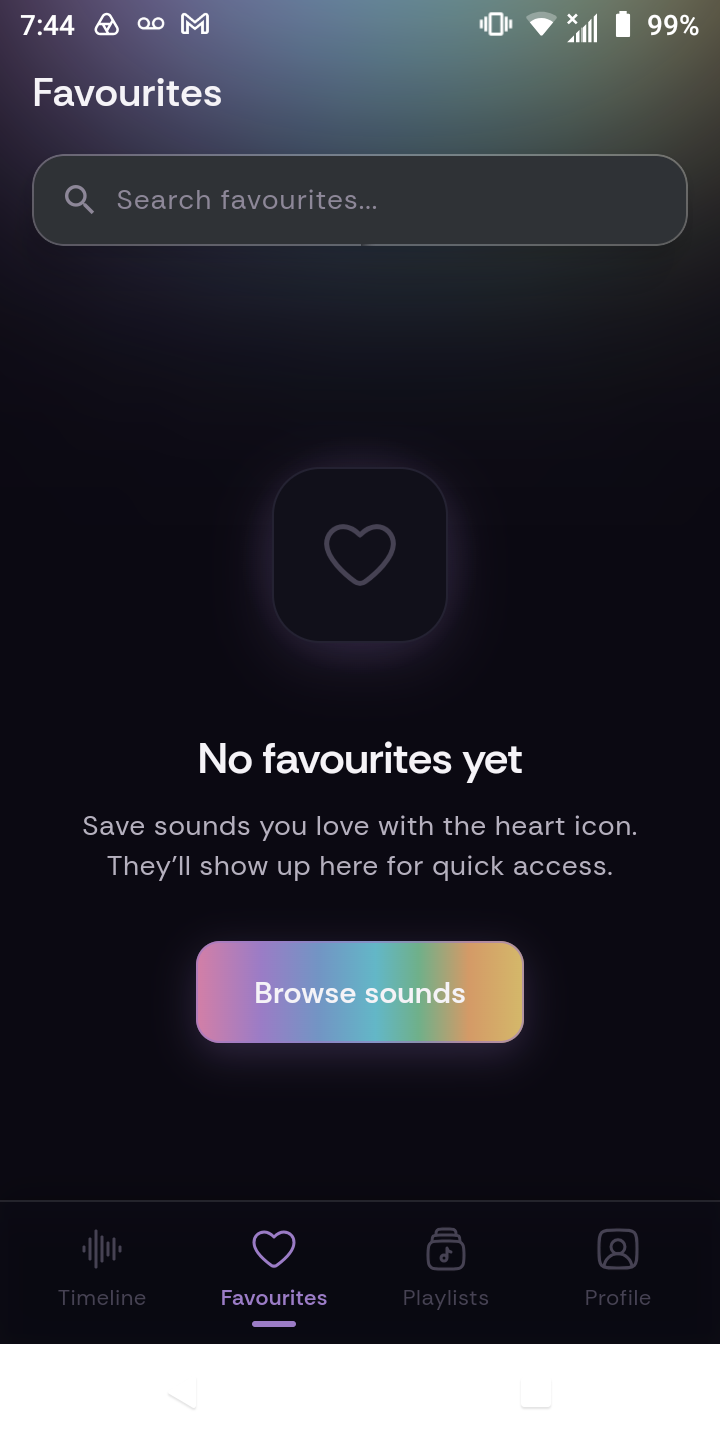
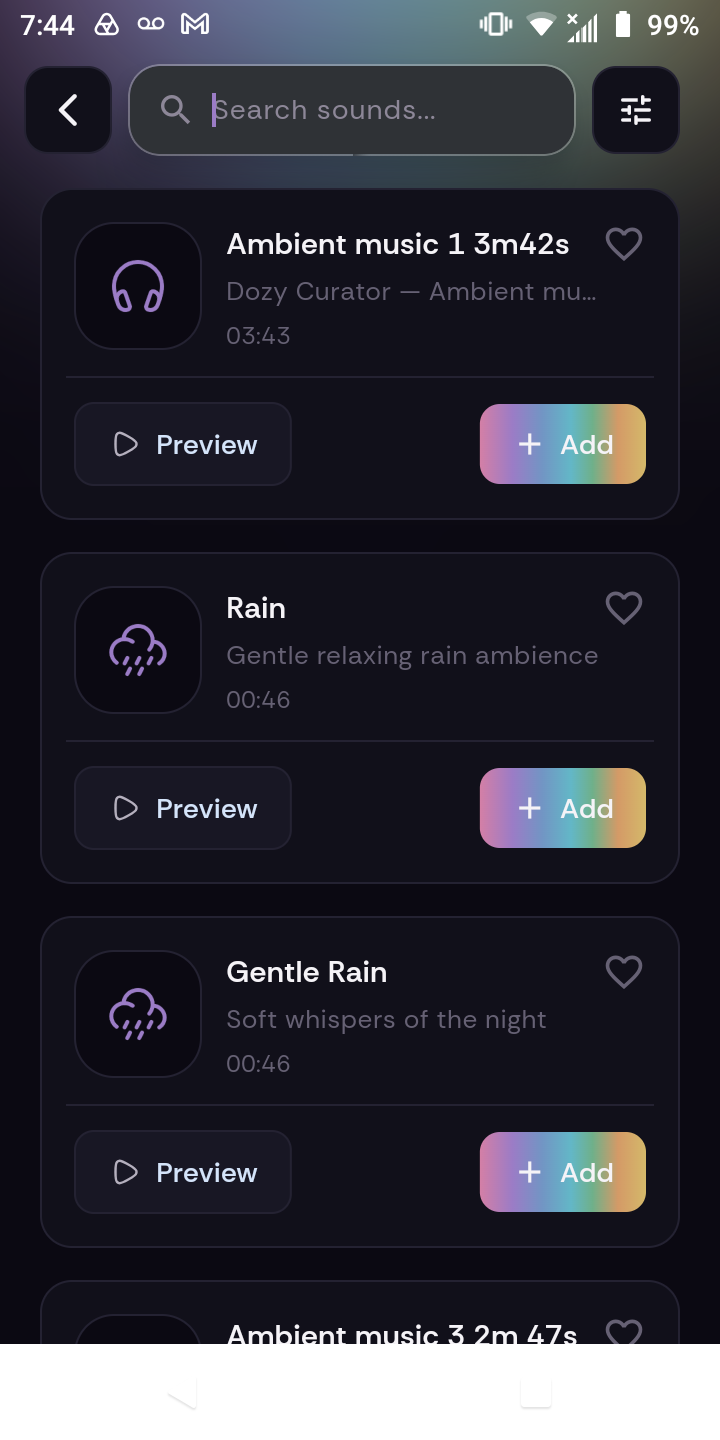
Tap browse sounds to select sounds for your favorites.
Tap the heart in the top right to favorite a sound.
PLAYLISTS
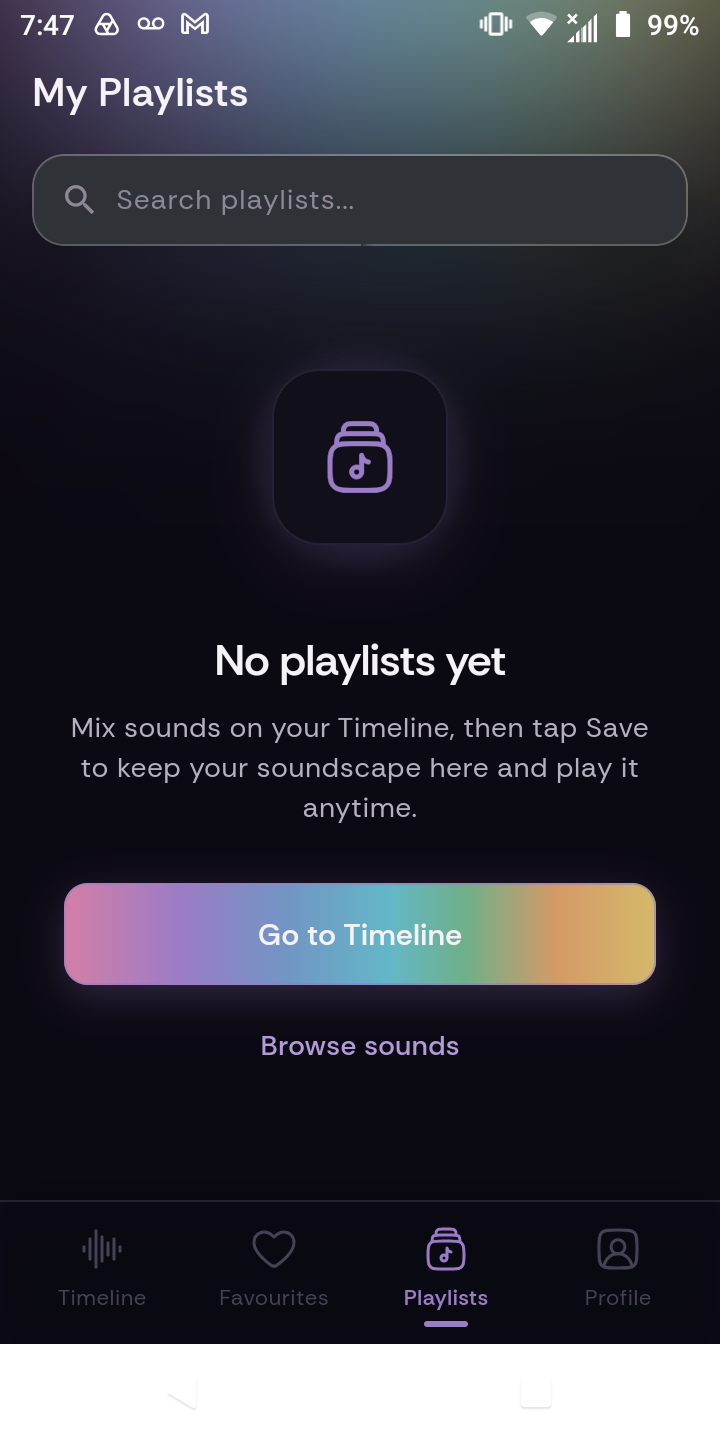
You can only save playlists with an account.
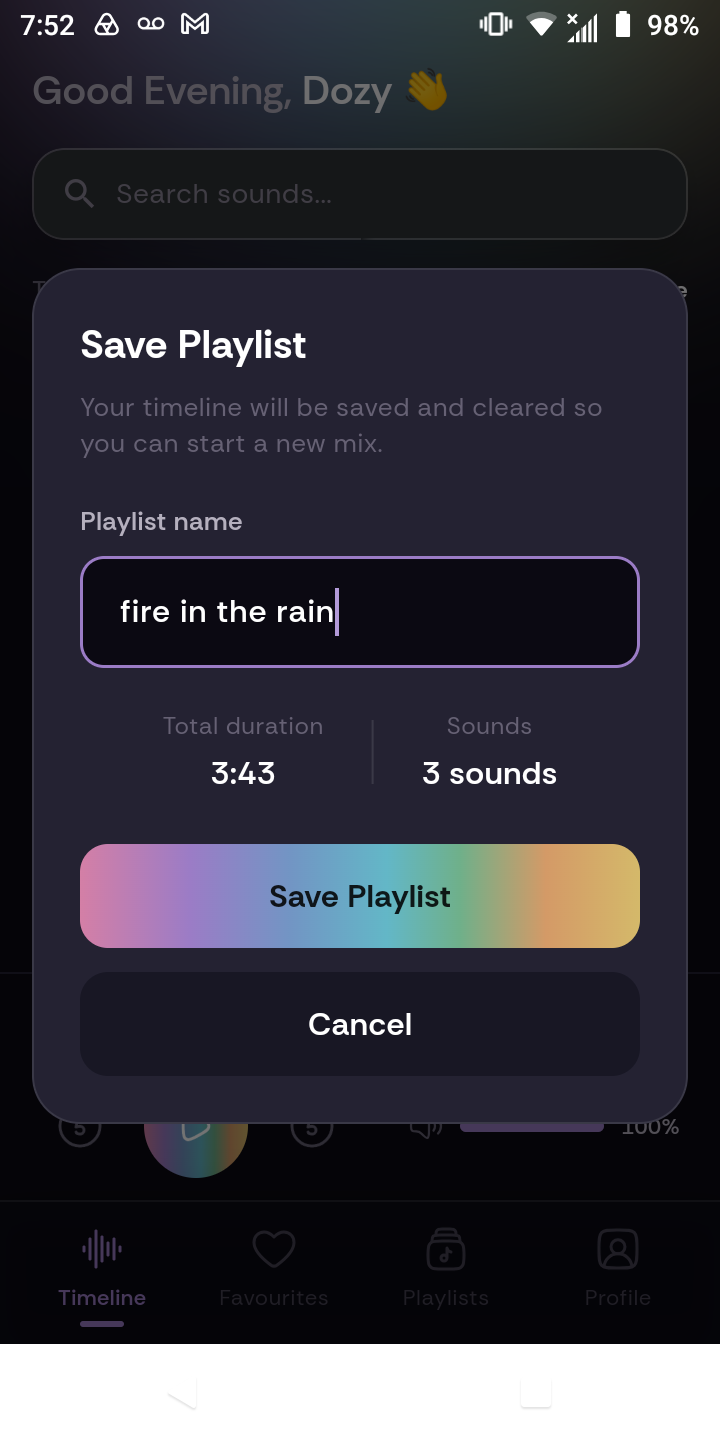
After signing up, make your timeline, then choose "Save" at the top right of the timeline.
Make a playlist name and save the playlist.
EDIT PLAYLISTS
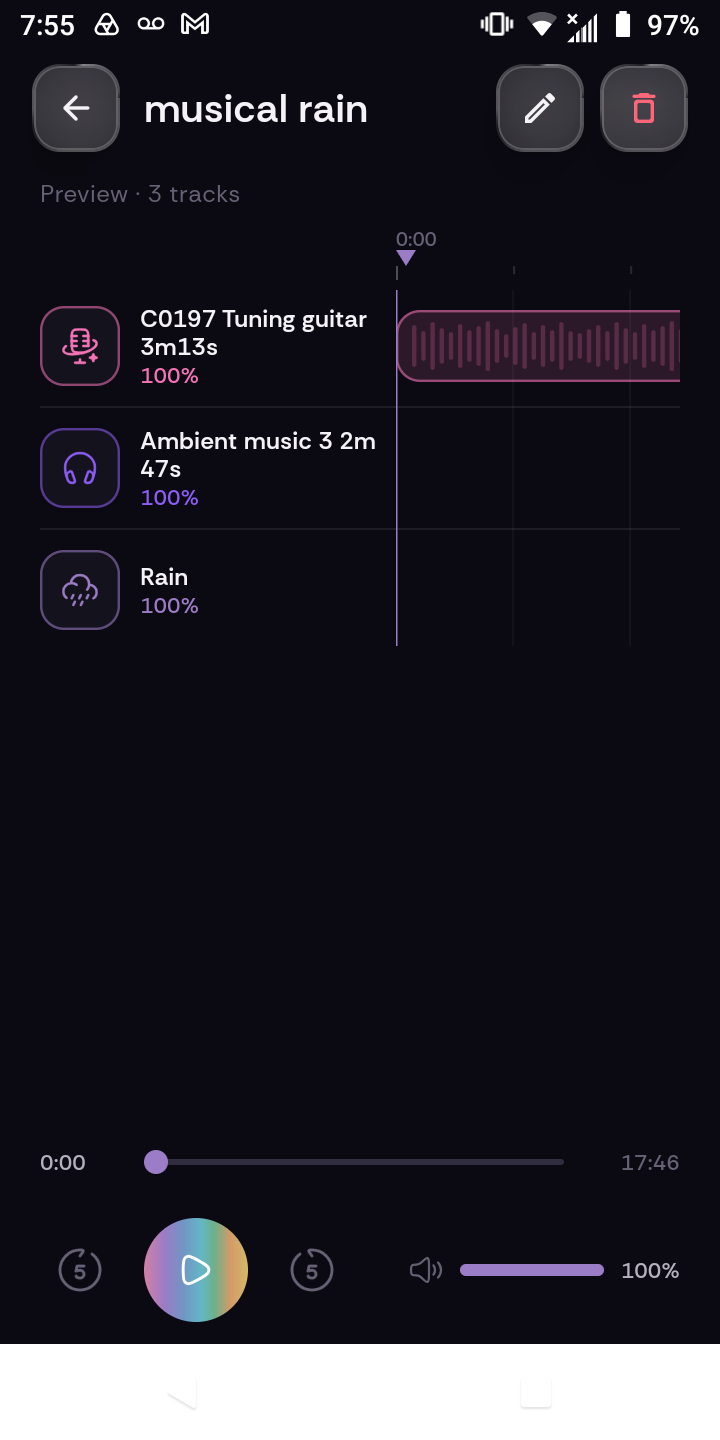
In your saved playlists, tap on a playlist.
You will have a preview of your playlist timeline.
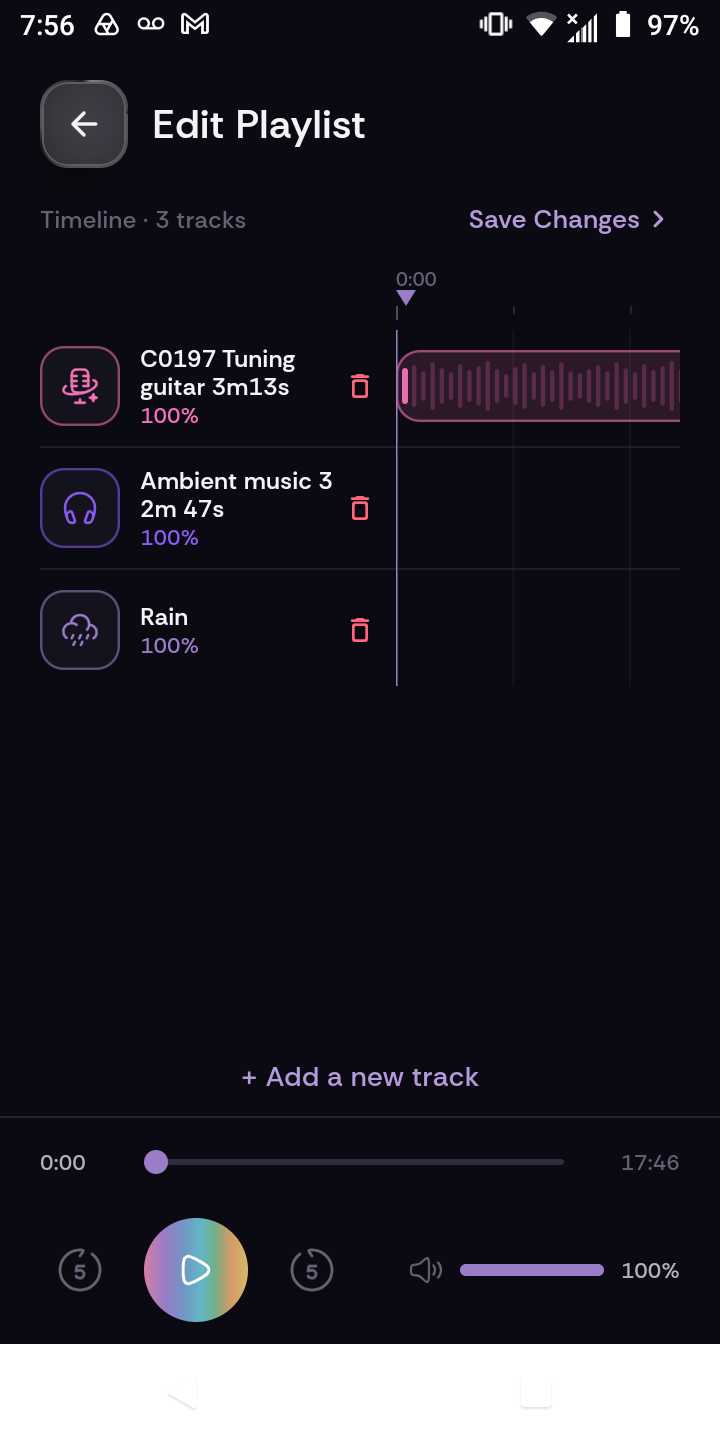
Tap the pencil to edit or the trash icon to delete.
If you wish to edit, +add to track will be displayed below.